 Keptby Gnilebat Labs

See what’s using the space in your phone’s settings. Then clear, in this order: big and accidental videos, chat media, duplicates and bursts, screenshots. Finally, remember the trash: deleted files keep using space until it’s emptied.
First, see what’s taking up space
- Pixel and most Android phones: open Settings → Storage and tap a category to see what’s in it. The same screen offers Free up space.
- Samsung Galaxy: Settings → Device care → Storage. On older models it’s Settings → Battery and device care → Storage. Samsung lists the trash, unused apps, duplicate files and large files there.
On most phones photos and videos are the biggest block after apps. That’s where to start.
1. Videos: the biggest win
A single minute of 4K video often takes a few hundred megabytes, about as much as a hundred photos. Long clips you filmed once and never watched, accidental recordings of your pocket and old screen recordings are the quickest gigabytes you’ll ever free.
Built in: Files by Google has a Delete large files card under ☰ → Clean, and Samsung shows Large files in the storage screen above.
2. Chat media
Messenger apps save every photo, video and meme from every group. In WhatsApp, Settings → Storage and data → Manage storage shows how much each chat uses and lets you sort by size. Our WhatsApp guide walks through it.
3. Duplicates and bursts
Retakes, burst shots and copies saved twice add up quietly. Exact copies are easy to find with built-in tools; near-identical shots need a smarter comparison. See how to delete duplicate photos.
4. Screenshots
Hundreds of small files that are useless a week later. Delete them in one go, keeping the few you still need.
5. Don’t forget the trash
Deleted photos don’t free space right away. Google Photos, Samsung Gallery, Files by Google and Android itself keep them in a trash for 30 days, and they keep using storage until then. If you need the space now, empty the trash in the app you deleted them with. Our guide Where is “Recently deleted” on Android? shows where each trash is.
What not to delete
- The only copy of photos you care about. Check that your backup is complete before a big cleanup.
- Google Photos’ “Free up space” is different. Profile photo → Free up space on this device removes the phone’s copies of photos that are already backed up. They stay in your Google account, but you can’t see them offline or in your phone’s own gallery app anymore. Let the backup finish first.
Clear the photo and video part in one place
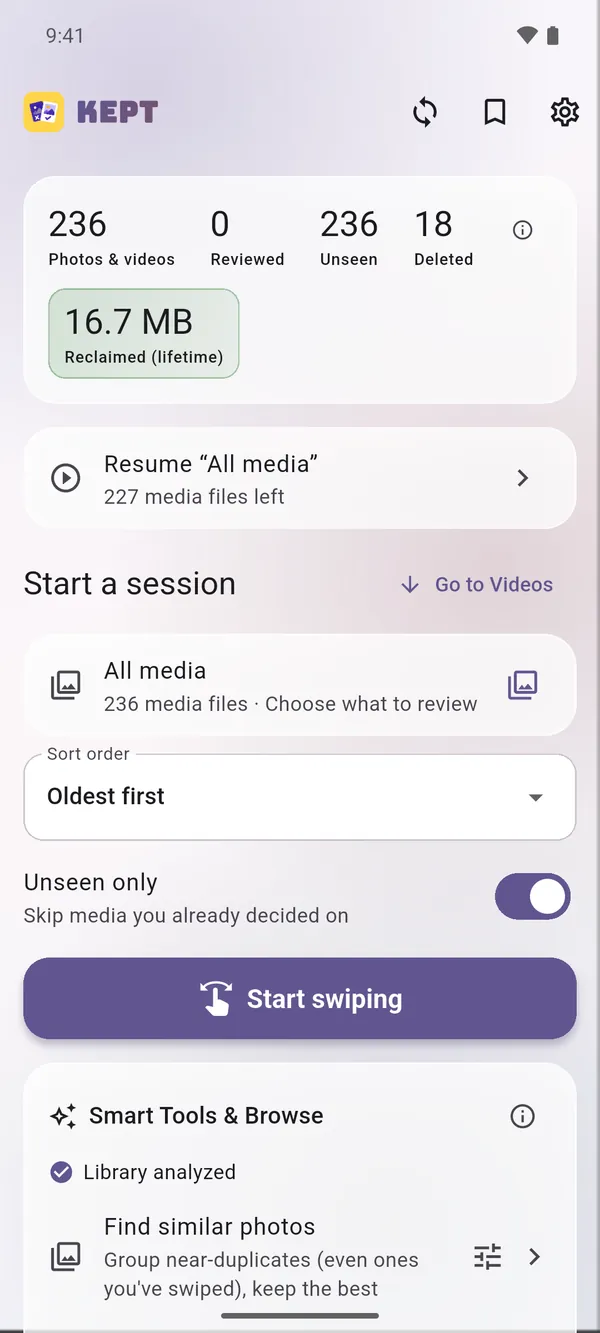
Kept puts the space hogs on one screen and shows how much each batch frees.
- Open Large files (and Large videos if videos are on) to see the biggest files first. You set the minimum size.
- Check Short clips and Screen recordings for accidental videos.
- Go through Chat media with “Largest first”.
- Then Find similar photos and Screenshots & documents.
- Review the pile and delete it in one batch. Kept shows how much space you freed.

Photos you delete with Kept go to Android’s trash too, so you can bring them back in Settings → Deleted by Kept for about 30 days. After that Android removes them for good.