 Keptby Gnilebat Labs

For exact copies, use the duplicate finder that’s already on your phone: Files by Google or, on Samsung, the Gallery’s clean-out suggestions. For near-identical shots like retakes and bursts you need a tool that compares what’s in the photos, and keeps the sharpest one.
Where duplicates come from
- Retakes and bursts: five tries for one group photo, or a burst of twenty frames.
- Edited copies: many editors save the edit next to the original.
- Chats: the same photo saved again from WhatsApp, or sent to you by three people.
- Downloads and restores: a folder copied twice when moving to a new phone.
Exact copies vs. similar shots
An exact copy is the same file twice. Built-in tools find these reliably. A similar shot is a different file of the same moment: a retake, the next burst frame, a resized or slightly cropped version. Built-in duplicate finders look for identical files, so they miss these, and they’re usually the bigger pile.
The built-in ways
Files by Google (any Android phone)
- Open Files by Google and tap ☰ → Clean.
- Find the Duplicate files card. The originals are marked “Original”.
- Tap Select files, choose the copies and move them to the trash.
Samsung Gallery
- In Gallery, tap ≡, then Clean out → Delete duplicate pictures.
- Tap Delete duplicates. Samsung keeps the originals. If there are no exact copies, the option doesn’t show up.
Samsung also lists Duplicate files under Settings → Device care → Storage. And the Gallery groups similar images automatically, with a number on the thumbnail, so you can open a group and delete the extra shots by hand.
Google Photos
Google Photos has no duplicate finder. It can group near-identical photos taken together into stacks (⋮ → Stack similar photos in the Photos view, backup must be on), with a top pick on the cover. Careful: moving a stack to the trash trashes every photo in it, so open the stack and delete the extras one by one.
Picking the one to keep
- Zoom in on faces: open eyes and sharp focus beat a nicer crop.
- Keep the original over an edited copy unless you prefer the edit.
- Favourites stay. If you hearted one of the shots, that’s probably your keeper.
Find similar shots with Kept
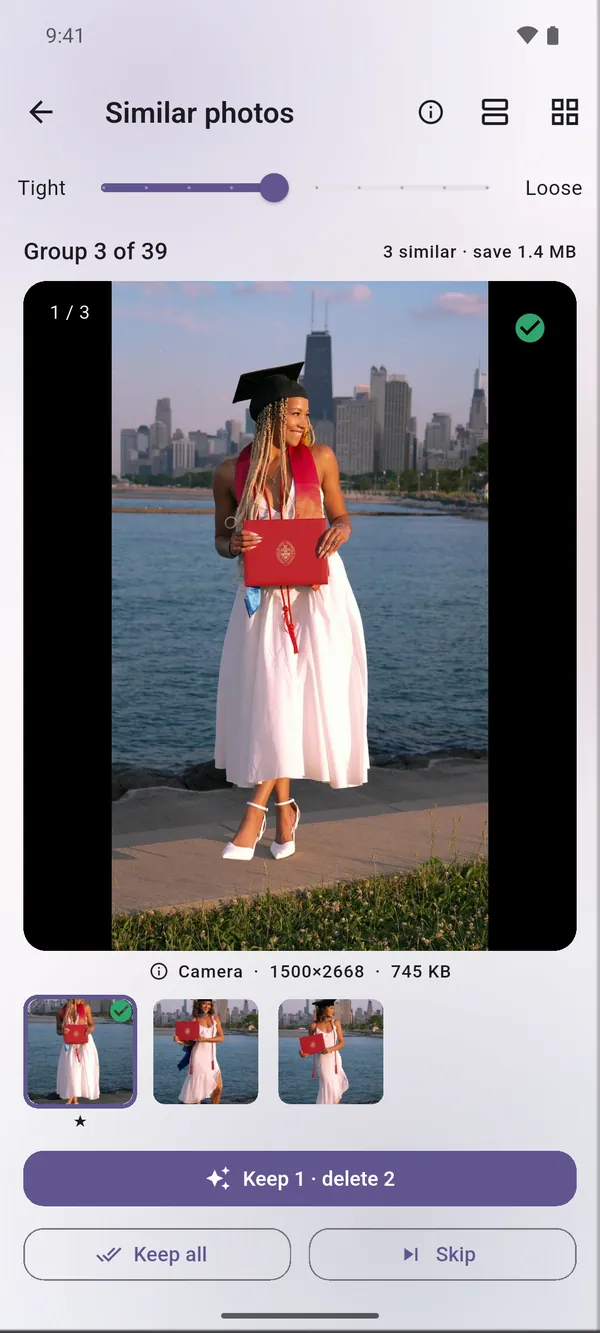
- Open Find similar photos on Kept’s home screen. Kept compares shape and colour, so retakes, bursts and resized copies end up in the same group.
- Move the Tight/Loose slider to choose how alike photos must be.
- In every group Kept marks the sharpest shot. Tap Keep 1 · delete 2, or pick another photo to keep.
- Short on time? Keep best in all does it for every group at once. The folder icon lets you work through one album at a time.
- Review the pile and delete it in one batch.

Favourites and photos you protect in Kept are never deleted by Find similar. The same works for videos: Similar videos finds copies and retakes of the same clip.