Keptby Gnilebat Labs

Short answer
Open the Screenshots album, select everything, unselect the few you still need, delete. Files by Google can also round up screenshots older than four weeks for you.
Before you delete
A few screenshots are worth keeping: tickets, receipts, a confirmation number, a route you’ll need again. Skim the newest ones first and move those few into an album (say, “Documents”) so a bulk delete can’t take them.
Google Photos
- Open Collections → On this device → Screenshots.
- Touch and hold the first screenshot, then drag your finger down to the last one to select them all.
- Tap the trash icon and confirm. They move to Google Photos’ trash for 30 days.
Samsung Gallery
- Open Albums → Screenshots.
- Touch and hold a screenshot, then tap All at the top left.
- Unselect the ones you want to keep, tap Delete and confirm. They go to the Gallery’s trash for 30 days.
Files by Google
- Tap ☰ → Clean.
- On the Old screenshots card (screenshots older than four weeks), tap Select files.
- Check the selection and move them to the trash.
Screenshots that aren’t in the Screenshots album
Screenshots saved from chats, or taken with another app, often end up in other folders. And photos of documents, whiteboards and receipts are clutter of the same kind, just taken with the camera. The Screenshots album won’t show either.
All screenshots in one pile, with Kept
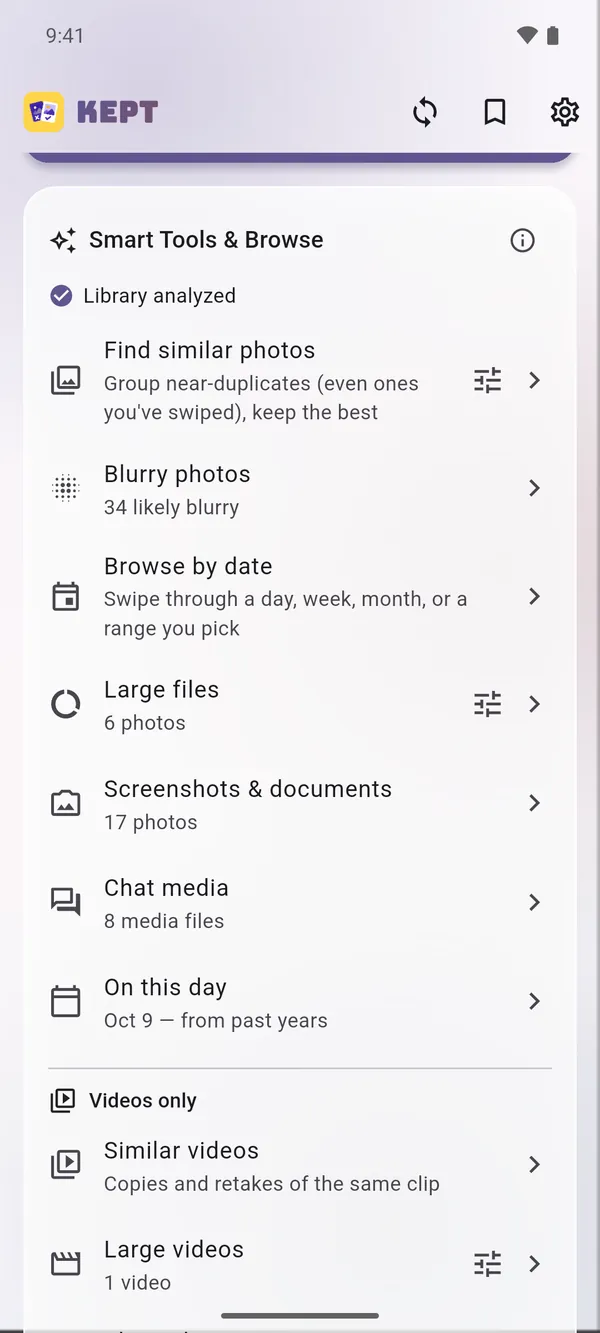
- Open Screenshots & documents on Kept’s home screen. Kept recognises screenshots by their size and shape, wherever they’re saved, plus photographed documents.
- Swipe left to delete, right to keep. Or tap ⋮ → Select in grid, then Select all, unselect the few you need and tap Delete.
- Review the pile and delete it in one batch.