Keptby Gnilebat Labs

In WhatsApp, open Settings → Storage and data → Manage storage, sort by size and delete the biggest files and chats. Then turn off Media visibility so new photos and videos stop landing in your gallery.
See how much space WhatsApp uses
Tap ⋮ → Settings → Storage and data → Manage storage. At the top you see how much WhatsApp takes in total. Below is every chat and channel with its size. Large files and files that have been forwarded many times are the usual suspects.
Delete the biggest files
- In Manage storage, open the chat that takes the most space.
- Sort by Largest to put the big videos first.
- Select what you don’t need (or Select all) and tap Delete.
- Repeat for the next few chats. Big groups are usually where the gigabytes are.
WhatsApp notes that files you saved elsewhere on your phone can stay there, so check your gallery too.
Stop new media filling your gallery
- For all chats: ⋮ → Settings → Chats and turn off Media visibility. It’s on by default.
- For one noisy group: tap the group’s name, then Media visibility → No → OK.
This only affects new media. Photos and videos already in your gallery stay where they are.
Clear chat media from the gallery side, with Kept
WhatsApp’s storage screen is organised by chat. Kept shows the media itself, full screen, so you can decide in a second what’s a meme and what’s a memory.
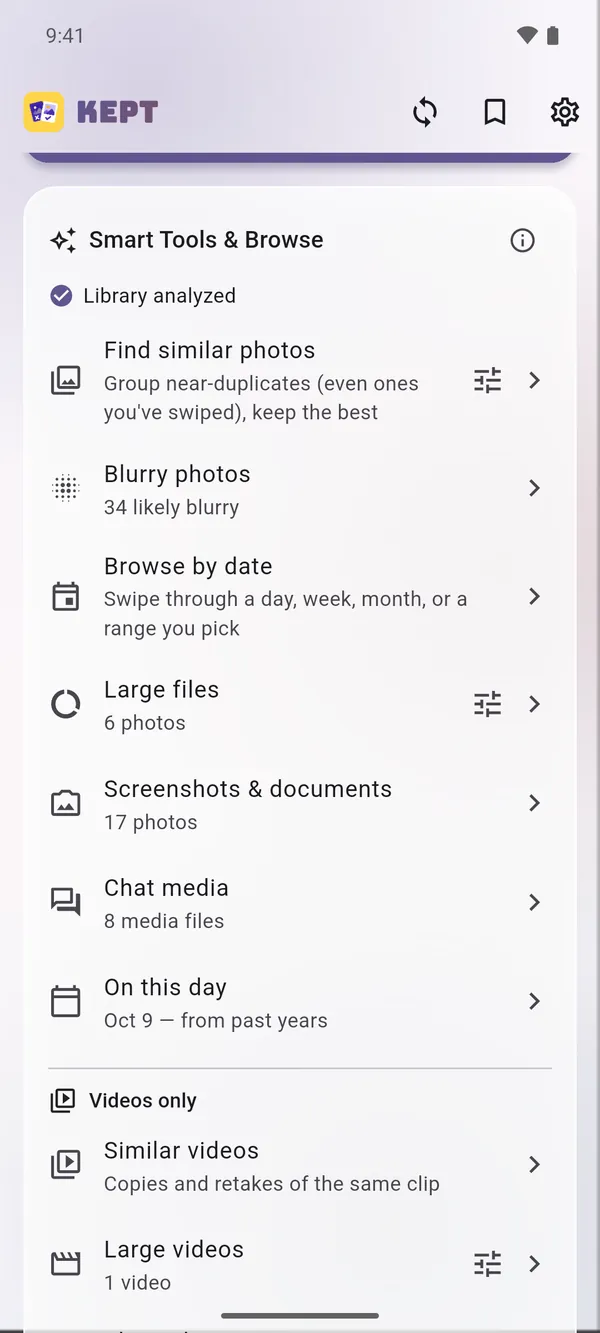
- Open Chat media on Kept’s home screen. It collects photos and videos saved from WhatsApp, Telegram, Signal, Messenger, Viber and WeChat.
- Choose Largest first and swipe: left to delete, right to keep.
- Review the pile and delete it in one batch.