 Keptby Gnilebat Labs

Clear the easy piles first (duplicates, screenshots, chat media, blurry shots). Then go through the rest one photo at a time with a single keep-or-delete decision, newest first, in short sessions. Delete everything in one batch at the end, not photo by photo.
Why sorting photos feels so slow
Most gallery apps are made for looking at photos, not for deciding about them. Deleting one photo means opening it, tapping delete, confirming and going back: four taps, thousands of times. And if you also sort into albums along the way, every photo needs two decisions instead of one.
The fix isn’t more willpower. It’s a smaller decision per photo, and doing the obvious stuff in bulk.
The system, step by step
- Start with the piles that need no thinking. Near-identical shots, screenshots, memes saved from chats and blurry photos. You can clear these by the dozen, and they free the most space for the least effort. Our guides on duplicates, screenshots and WhatsApp media show how.
- Make one decision per photo: keep or delete. Don’t build albums yet. If you’re unsure, mark the photo for later and move on. Hesitating is what makes sorting slow.
- Go newest first. You still remember the context of recent photos, so you decide quickly, and that’s where the clutter is still growing.
- Work in short sessions. Ten or fifteen minutes at a time. After that your judgement gets sloppy and you start keeping everything. Next time, pick up where you stopped.
- Keep the best of a series, not all of it. Six shots of the same sunset? Keep one, maybe two. The sharpest one is usually the right one.
- Delete in one batch at the end. Collect your deletions and look over them once before they go. It’s fewer taps, and it catches the photo you swiped away by mistake.
How long it takes
With one decision per photo, most people manage a photo every one or two seconds. At two seconds a photo, 3,000 photos take about 100 minutes: seven sessions of fifteen minutes. The bulk piles from step 1 go much faster than that.
Doing it with your phone’s gallery
You can follow the system with the gallery app you already have. In Google Photos, touch and hold the first photo, then drag your finger across the grid to select many at once, and delete them together. Samsung Gallery works the same way: touch and hold one photo, then tap more, or tap All at the top left to select everything in an album.
The limit: you judge small thumbnails in a grid, and both apps are built for browsing. Going through photos one by one in full screen, with a single gesture per photo, isn’t what they’re made for.
The faster way: swipe with Kept
Kept is built around exactly this system: one photo, one swipe, and every deletion collected for one final check.
- Install Kept and allow access to your photos (and videos, if you like).
- Clear the piles first. On the home screen, open Find similar photos, Screenshots & documents, Chat media and Blurry photos.
- Tap Start swiping. Left deletes, right keeps, up bookmarks for later, down skips. “Unseen only” makes sure you never see a photo twice.
- When you’re done, tap the trash counter at the top, look over the pile and delete it in one go.

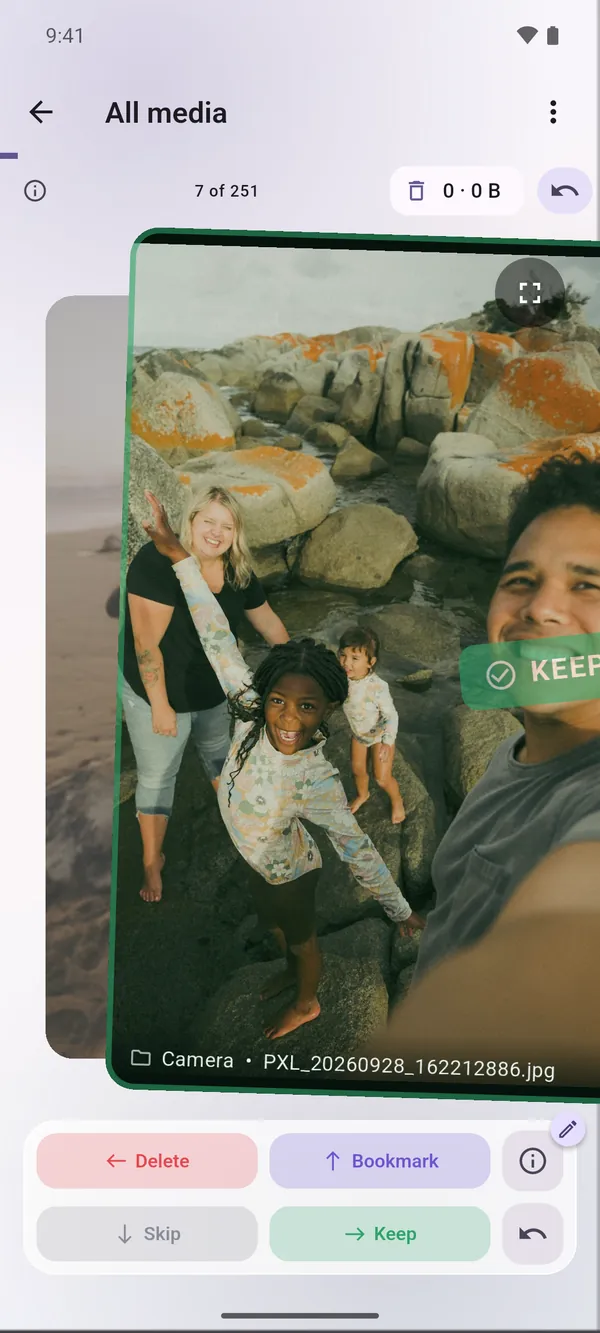
Similar shots stack up while you swipe, so a burst of ten photos is one decision: swipe right to keep the best and clear the rest. Nothing is deleted until you confirm, and deleted photos stay in your phone’s trash for about 30 days.